How to film yourself and your reaction at the same time
You are watching something, or standing in front of something, and the footage is worthless without your face in it. One iPhone can capture both.
Get DualCapture on the App Store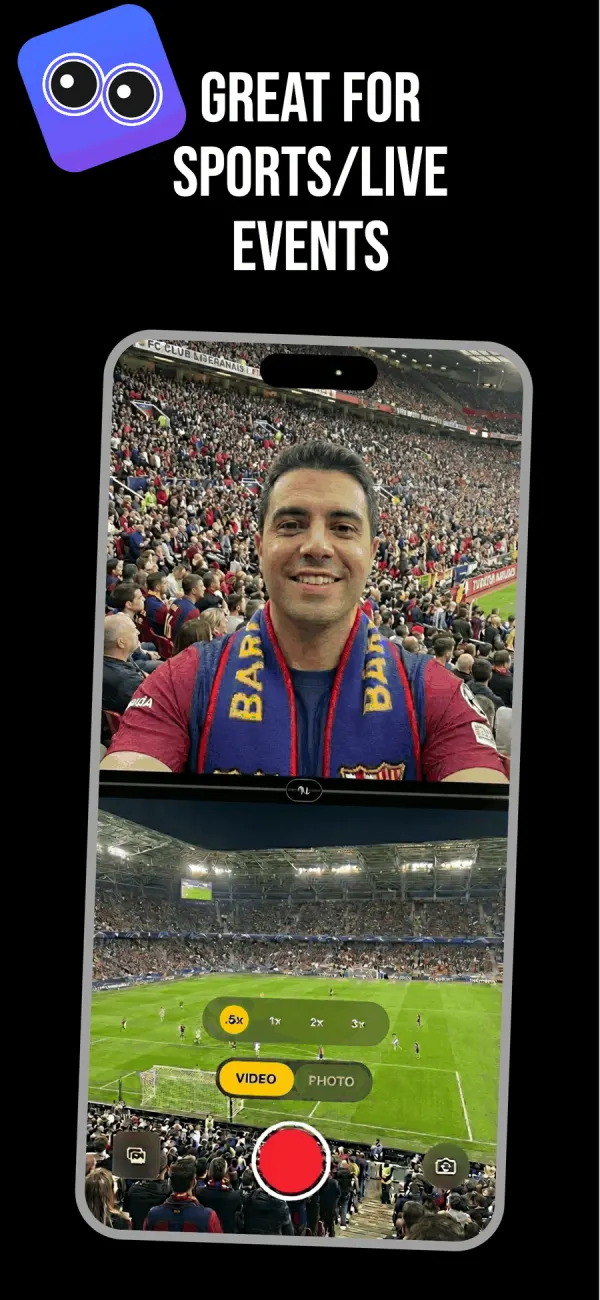
Two different problems, two different answers
People searching for this want one of two things.
Some want to film what is in front of them while their own face is also recorded. A concert, a match, their kid taking a first step, a prank landing. Both cameras, one phone, one take.
Others want their face recorded over their own iPhone screen while they play a game or scroll something. That is a screen recording problem, and iOS handles it differently. The section further down covers it honestly, including the part Apple does not let you do.
Filming yourself and what you are looking at
This is the case both cameras were made for, and it takes about fifteen seconds to set up.
- Open DualCapture and tap VIDEO on the mode toggle.
- Pick a layout. Split screen stacked works for a phone held upright. Picture-in-picture keeps the scene full size with your face in a corner.
- Drag the divider so your face gets the share of the frame it deserves. A third is usually plenty.
- Use the swap button to put the back camera on top if the scene matters more than you do.
- Set the rear zoom before you start. There is .5x, 1x, 2x and 3x.
- Hit the red button.
Your reaction and the thing causing it are now locked to the same timeline. No syncing two clips by clapping, no guessing which second of your face matches which second of the action.
Recording your iPhone screen with your face on it
Here is the honest version, because a lot of pages lie about this.
iOS Screen Recording captures your screen and your microphone. It does not capture the front camera. Apple has never shipped a way to composite your face onto your own screen recording from inside the phone, and no third-party app can do it either, because iOS does not hand the screen buffer to other apps that way.
So you have two real options. Record the screen with Screen Recording, record your face separately, and lay one over the other in an editor. Or put the game on a second device, a TV, a laptop, and point the rear camera at that screen while the front camera catches your face. The second route gives you a finished video straight out of the phone with nothing to edit.
Creators reacting to other people's videos mostly use the second route. A tablet propped on a desk, the phone on a small stand, and both cameras rolling.
Framing so both halves are watchable
Put the camera at eye height. Filming up your own nose while the bottom half shows a concert is the single most common way these videos go wrong.
Give your face less room than you think. Viewers look at the action first and check your face to see how to feel about it. A third of the frame reads as generous.
Watch what is behind you. The front camera sees your ceiling, your laundry and your open door, and unlike a webcam there is no blur to hide it.
Get the audio from the right side. The phone picks up everything, so if the moment is loud and you are commenting quietly, you will be buried. Speak up or move closer.
Fix it afterwards without reshooting
Because DualCapture saves the front camera, the back camera and the merged composite as separate files, a take is rarely a total loss. Your reaction was flat for the first eight seconds but the action was perfect? Use the back camera file alone for that stretch and cut to the merged version when your face gets good.
With Premium's Dual Orientation setting turned on, each camera is saved as a vertical and a horizontal video instead of the original single-orientation clip, so posting to two platforms does not mean cropping twice. The same workflow is what makes it useful as a reaction video app.
Frequently asked questions
Can an iPhone record the screen and the front camera at the same time?
No. iOS Screen Recording captures the display and the microphone only, and Apple gives no app access to composite the front camera onto it. Record the two separately and combine them in an editor, or film the other screen with the rear camera.
Which layout works best for reaction videos?
Split screen stacked for a phone held upright, because both halves stay readable on a vertical feed. Picture-in-picture if the thing you are filming needs the full frame and your face is a small corner inset.
Can I change which camera is bigger while recording?
No. Set it before you start: the swap button flips the two feeds, and the layout, divider and swap stay fixed for the whole take. To change it, stop and start a new take.
Do I get the two cameras as separate video files?
Yes. DualCapture saves the front camera and the back camera as their own videos alongside the combined one, three files from one recording. Premium's Dual Orientation setting, off by default, saves each camera as both a vertical and a horizontal video instead.
Which iPhone do I need?
DualCapture needs iOS 18 or later; the App Store listing allows iPhone XS, XS Max, XR and newer, and we build and test for iPhone 15 and newer. Apple’s own Dual Capture mode in the Camera app runs only on the iPhone 17, iPhone 17 Pro, iPhone 17 Pro Max, iPhone Air, iPhone 18 Pro, iPhone 18 Pro Max and iPhone Duo.
Is there a watermark or a time limit?
On the free version, yes to both: a DualCapture.com watermark, and takes stop at 3 minutes. Premium removes the watermark and the limit, so storage and battery become the ceiling on a long take.
Sources
Try it on your iPhone
Get DualCapture on the App Store