Record reaction videos on iPhone with both cameras at once
Reaction videos normally take two devices and a long session in an editor. DualCapture films your face and whatever you are reacting to on one iPhone, in one take.
Get DualCapture on the App Store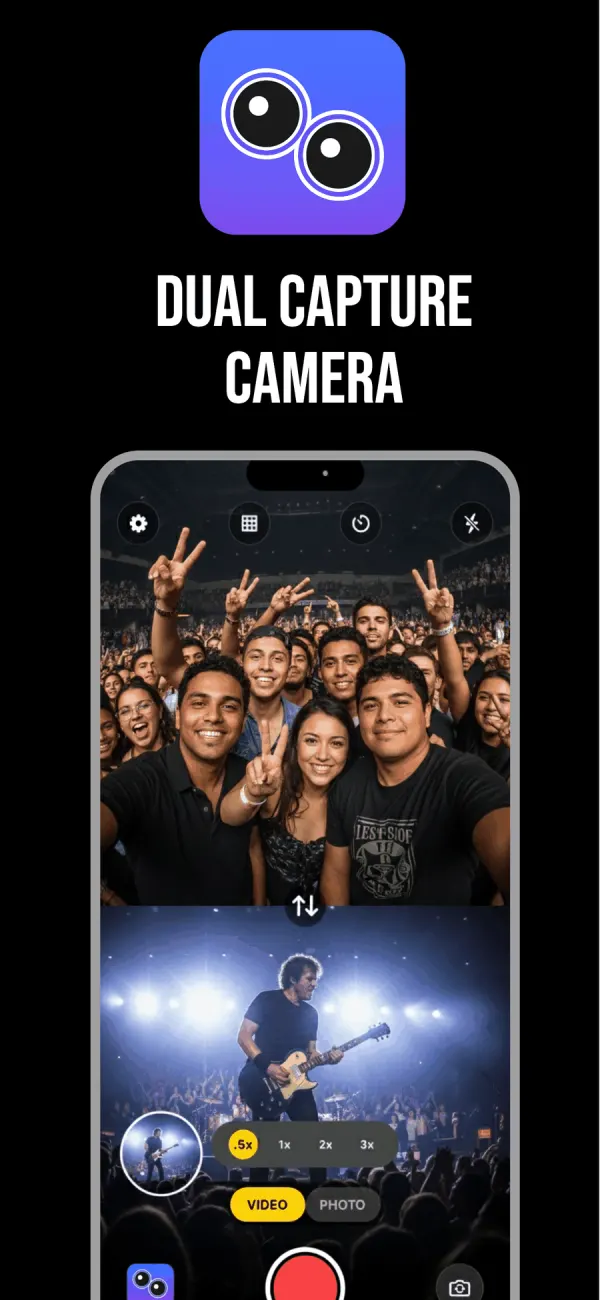
Why one take beats two devices
The usual setup is a phone on a tripod aimed at your face and a laptop playing the clip. Then you drag both files into an editor and nudge one track until the laugh lands on the joke.
Sync drift is the part nobody warns you about. Two devices start a few frames apart, and the gap widens over a long take, so one offset never fixes the whole thing. Eventually you are cutting on feel.
DualCapture runs both iPhone cameras through one recording session, so the front and back streams share a clock. Your reaction sits where it happened. There is nothing to line up afterwards.
Pick the layout before you hit record
Split screen stacks the two cameras top and bottom, or sets them side by side. Drag the divider to decide how much room each one gets. Double tap it to snap back to even. Picture-in-picture floats your selfie camera in a corner of your choosing over a full-frame back camera.
For reacting to something on a screen, the stacked split usually wins. Your face takes the top at full width and the thing you are watching takes the bottom, so neither gets cropped into a letterbox. For reacting to something happening in front of you, PiP keeps the scene big and tucks you into a corner where you are still readable.
A swap button trades which camera sits where. Set it, along with the layout and the divider, before you press record, because all three stay fixed for the whole take.
You keep the front and back clips
One take writes three files to your Photos library: the front camera on its own, the back camera on its own and the combined video. Premium's Dual Orientation setting, off by default, saves each camera as both a vertical and a horizontal video instead. No export step.
The separate clips are the reason to shoot in this app rather than fixing it in post. If the reaction is great but the layout is wrong, both originals are still there and you can rebuild the edit however you like. Want your face alone for a thumbnail? Already saved. Want to cut the reaction over a screen recording instead of the back camera? The front clip is a normal video file.
Free exports carry a DualCapture.com watermark and free takes stop at 3 minutes. Premium removes both.
A few things that help the take
Hold the phone the way the finished video will be watched. Framing it right beats cropping it later.
Turn stabilization on in Settings if you are moving around. It runs on the back lens and trades a little field of view for a steadier frame. The self-timer runs 3, 5 or 10 seconds, enough to get your face into the top half before anything records.
Zoom on the back camera runs .5x through 3x while you record, so you can push in on a detail without touching the front framing.
What it runs on, and what Apple ships
DualCapture needs iOS 18 or later and an iPhone with multi-camera support, which the App Store listing puts at iPhone XS, XS Max, XR and newer (we build and test for iPhone 15 and newer). Downloading is free. Premium adds 4K, every layout, no watermark and no time limit, sold weekly, monthly, yearly or as a one-time lifetime purchase.
Worth knowing before you pay for anything: iOS 26 added a Dual Capture mode to Apple's own Camera app. It records front and back into one video with the selfie as a small overlay you can drag around the screen, and on the Pro phones you can change rear lenses mid-take. It costs nothing. The catches are that it only runs on iPhone 17, iPhone 17 Pro, iPhone 17 Pro Max, iPhone Air, iPhone 18 Pro, iPhone 18 Pro Max and iPhone Duo, the layout is locked, and you get one merged file with no separate clips. If that covers your reactions, use it.
Frequently asked questions
Do I need two phones to record a reaction video?
No. DualCapture uses the front and back cameras of one iPhone at the same time, so the reaction and the thing you are reacting to land in the same file.
Which layout is best for reacting to a video?
Stacked split screen, most of the time. Both halves keep their full width, and you can drag the divider to give the clip more room than your face.
Can I get my reaction as a separate video file?
Yes. Every recording saves the front camera and the back camera as their own files alongside the merged versions, so you can edit either one on its own.
Does the app add a watermark?
On the free version, yes: a DualCapture.com watermark, and takes stop at 3 minutes. Premium removes the watermark and the time limit.
Will it work on my iPhone 13?
No. Simultaneous front and back recording needs an iPhone with multi-camera support, and DualCapture needs iOS 18 or later (listing: iPhone XS and newer; tested on iPhone 15 and newer).
Is it free?
The app is free to download and record with. Premium covers 4K capture, every layout, no watermark and no time limit, either as a subscription or a single lifetime purchase.
Sources
Try it on your iPhone
Get DualCapture on the App Store