How to record front and back camera at the same time on iPhone
Two ways to do this. One is built into the Camera app on the newest iPhones. The other runs on iOS 18 and an iPhone with multi-camera support and gives you separate video files for each camera.
Get DualCapture on the App Store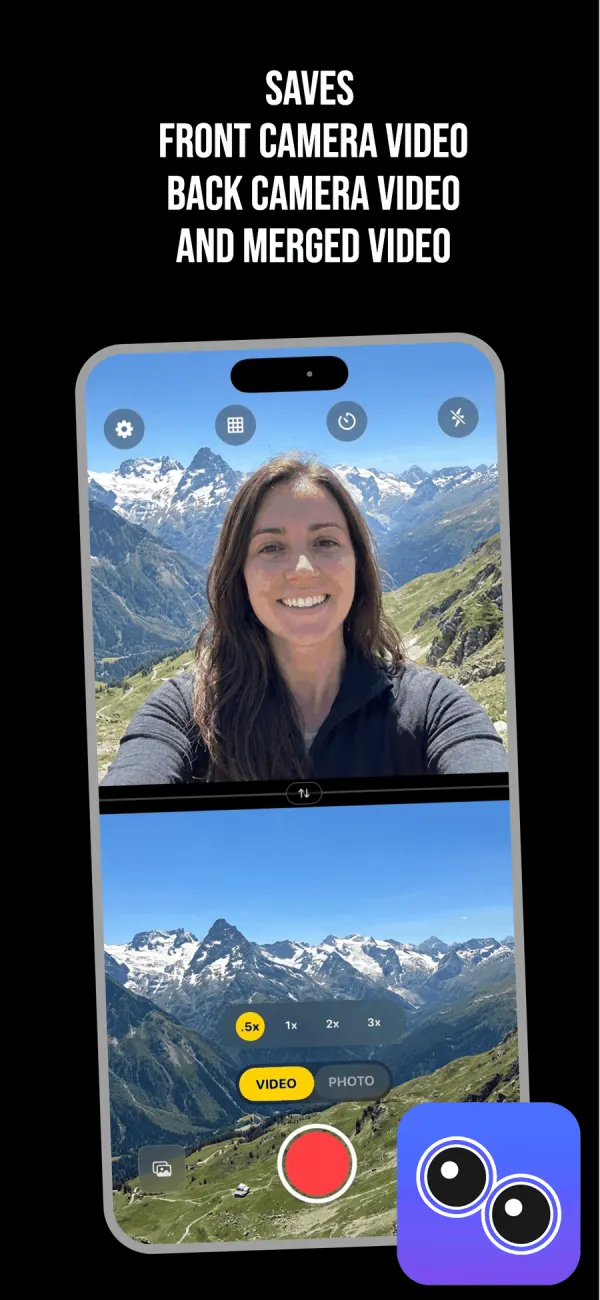
First, check what your iPhone can actually do
Apple added a Dual Capture mode to the stock Camera app in iOS 26. It runs on the iPhone 17, iPhone 17 Pro, iPhone 17 Pro Max, iPhone Air, iPhone 18 Pro, iPhone 18 Pro Max and iPhone Duo. No older model gets it.
That limit is a software decision, not a hardware one. Apple's multi-camera capture API has run on the iPhone XS and XR since iOS 13 in 2019, which is why third-party apps have been doing this for six years. So if you own an iPhone 16 and you cannot find Dual Capture in the Camera app, you have not missed a setting. It was never shipped to your phone. There is more on that gap in what Apple's dual camera mode can and cannot do.
DualCapture needs iOS 18 or later. The App Store listing allows iPhone XS, XS Max, XR and newer, and we build and test for iPhone 15 and newer.
Method 1: the built-in Camera app on iPhone 17
- Open Camera and swipe across to Video.
- Tap the control icon in the top right corner to open the extra shooting options.
- Choose Dual Capture from the menu.
- Drag the small front camera window to whichever part of the frame you want it in.
- Tap the shutter to start recording.
Three things to know before you rely on this. There is one layout and you cannot change it: the rear camera fills the frame and your face sits in a small floating window. No swap, no split screen. It records 1080p or 4K at 24 or 30 fps. And everything comes out as a single merged file, so you cannot pull the two cameras apart later in an editor.
Where you drag that little window also gets baked into the recording. Move it mid-take and the move is in the final video for good.
Method 2: DualCapture on iOS 18
- Install DualCapture and grant camera and microphone access the first time it launches.
- Tap VIDEO on the mode toggle above the record button.
- Open settings with the gear icon in the top left and pick your layout.
- Drag the divider up or down to give one camera more of the frame than the other.
- Tap the swap button if you want the back camera on top instead.
- Pick a zoom level on the back camera: .5x, 1x, 2x or 3x.
- Tap the red button to record.
- Tap the thumbnail in the bottom left to watch it back.
Do all of this before you tap record. Once a take is running, the layout, the divider and the swap stay fixed until you stop.
Pick your layout before you press record
Split screen vertical stacks the two cameras one above the other, which suits a phone held upright for Reels or TikTok. Split screen horizontal puts them side by side for a wide frame. Picture-in-picture floats your selfie over the main video, and you can drag it into any corner.
The divider is draggable in split screen, so a talking-head vlog can give your face a third of the frame and the rest to whatever you are filming. That is not a decision you make in an editor.
What ends up in your photo library
One take produces three files: the front camera on its own, the back camera on its own and the merged composite. Premium's Dual Orientation setting, off by default, saves each camera as both a vertical and a horizontal video instead, for Stories and full-screen playback.
The separate files matter more than they sound like they do. If your face is a distraction for ten seconds in the middle, you cut to the back camera clip and drop the merged one. None of that is possible with a single flattened file from the stock Camera app.
Settings go up to 4K and 60 fps with stabilization on, and the iPhone sets how high it can go with two cameras running. Pro has no time limit and no watermark; the free version stops a take at 3 minutes and adds a DualCapture.com watermark.
Getting a take worth keeping
Wipe the front lens. It lives against your leg in a pocket all day and it shows on camera in a way the rear glass does not.
Set focus and exposure before you start rather than during, because a mid-take exposure jump is obvious on playback. Watch the battery on long takes, since two camera pipelines pull hard and the phone gets warm.
For anything past a couple of minutes, prop the phone up. Handheld dual camera footage shakes twice as visibly, because the viewer has two moving frames to compare.
Frequently asked questions
Can I record both cameras at once on an iPhone 14 or older?
Possibly. The App Store listing allows iPhone XS, XS Max, XR and newer on iOS 18 or later, but we build and test for iPhone 15 and newer. Apps that target iOS 14 or 15 reach back as far as the iPhone XS.
Why is Dual Capture missing from my Camera app?
Apple limited it to the iPhone 17, iPhone 17 Pro, iPhone 17 Pro Max, iPhone Air, iPhone 18 Pro, iPhone 18 Pro Max and iPhone Duo. On any other model it does not appear in the menu, and no setting turns it on.
Does the built-in mode save the two cameras as separate videos?
No. It writes one merged file with both cameras flattened together, so you cannot separate them later. DualCapture writes the front camera and the back camera as their own files alongside the merged one.
Can I record both cameras in 4K at 60fps?
DualCapture offers settings up to 4K and 60 fps, and on each iPhone it uses the highest setting the hardware allows with two cameras running, which can be lower. The built-in Dual Capture mode tops out at 4K 30, with 24 and 30 fps the only options.
Can I switch which camera is the big one while recording?
Not during a take. In DualCapture you choose it with the swap button before you record, and it stays fixed until you stop. Apple’s built-in mode keeps the rear camera large for the whole recording.
Sources
Try it on your iPhone
Get DualCapture on the App Store